
Sections, pages and present mode
Head groups of widgets with section titles, split a dashboard into pages shown as tabs, and present it one page at a time over the whole window.
Three things turn a long dashboard into something you can present. A section title heads a group of widgets. Pages split the dashboard into tabs, one topic each. Present mode shows one page at a time over the whole window, with nothing of the app around it.
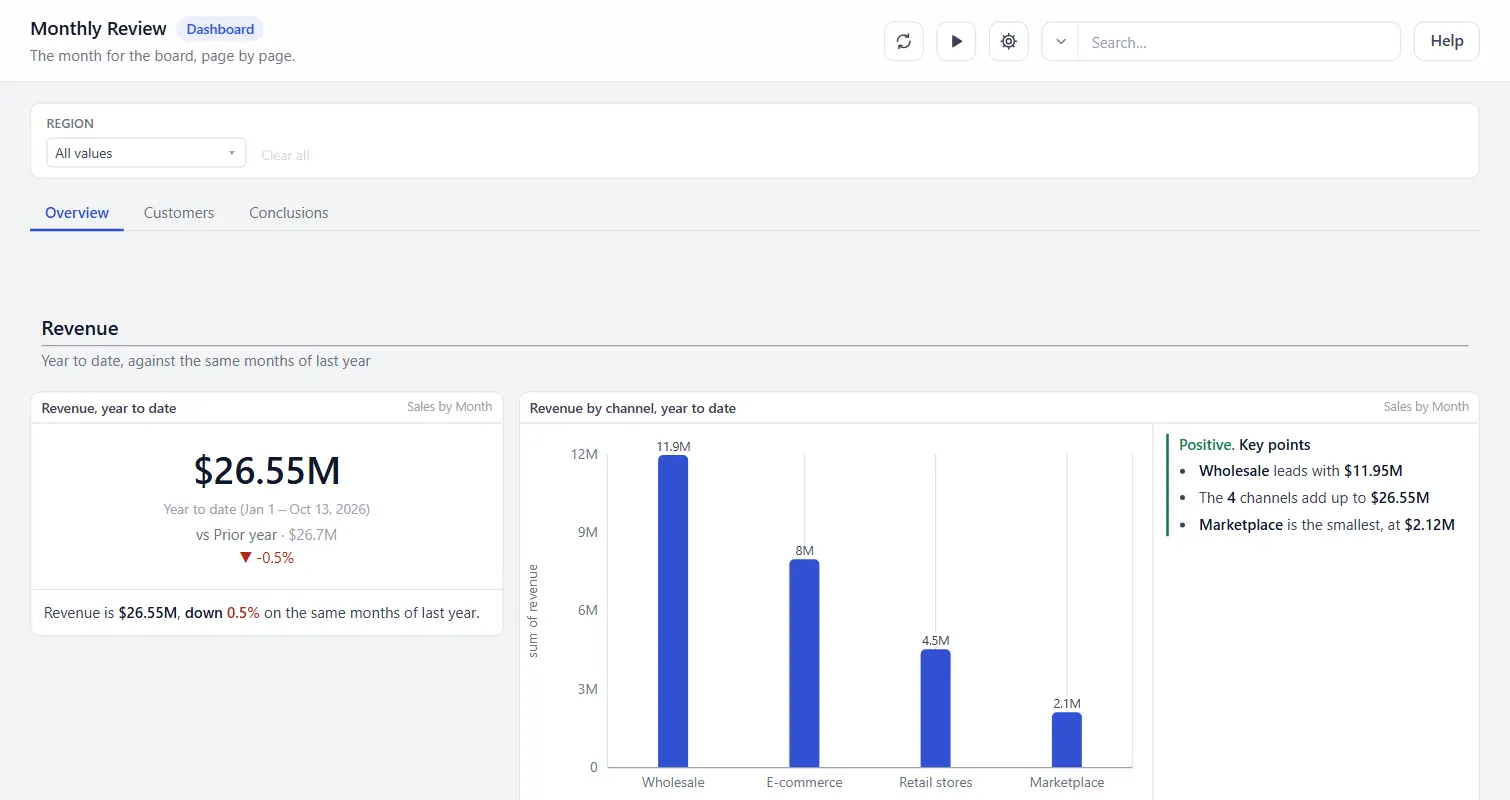
Section titles
A section title is a heading across the page, with a line of text under it if you want one. It has no report and no card around it.
- Choose Edit dashboard, or Edit Layout on a report, then + Add widget, and pick Section title.
- Type the heading in Title.
- Under What it shows, type a Line under the heading, or leave it empty.
- Tick Start a new printed page to begin a new sheet at this title on paper and in a PDF.
- Drag the title to its place, above the widgets it heads.
While you edit, a section title has a title bar like every widget, to move it by. For a reader it is the heading alone.
Pages
A dashboard can be split into pages. Each page is a tab with its own widgets. The filters and the Group by belong to the dashboard, so they apply to every page.
Split a dashboard into pages
- Choose Edit dashboard.
- Choose Add a page, beside Settings. The dashboard becomes two pages: Page 1 holds every widget it had, and Page 2 is new and open.
- Add widgets to the open page with + Add widget.
- Save the dashboard.
Manage pages
The tabs sit between the filter bar and the grid. While you edit, the tools beside them act on the selected page.
| Tool | What it does |
|---|---|
| Rename | Names the page. Press Enter to keep the name. |
| ← and → | Move the page one place earlier or later. |
| Remove page | Removes the page. Its widgets move to the page before it, under what that page holds. It asks first when the page holds widgets. |
| + Add page | Adds a page at the end and opens it. A dashboard holds up to 30 pages. |
Removing pages until one is left turns the dashboard back into one without pages.
Move a widget to another page
- Select the widget.
- In the side panel, under Report, kind and title, choose the page in Page.
The widget moves to the foot of that page and keeps its width and height.
The address of a page
The address names the page you are on, as p= and the page's id, such as #/d/12?p=p2. Copy the address to send someone to that page. A click on a widget opens its report, and Back returns to the page you were on. The first page is the address with no p=.
Present mode
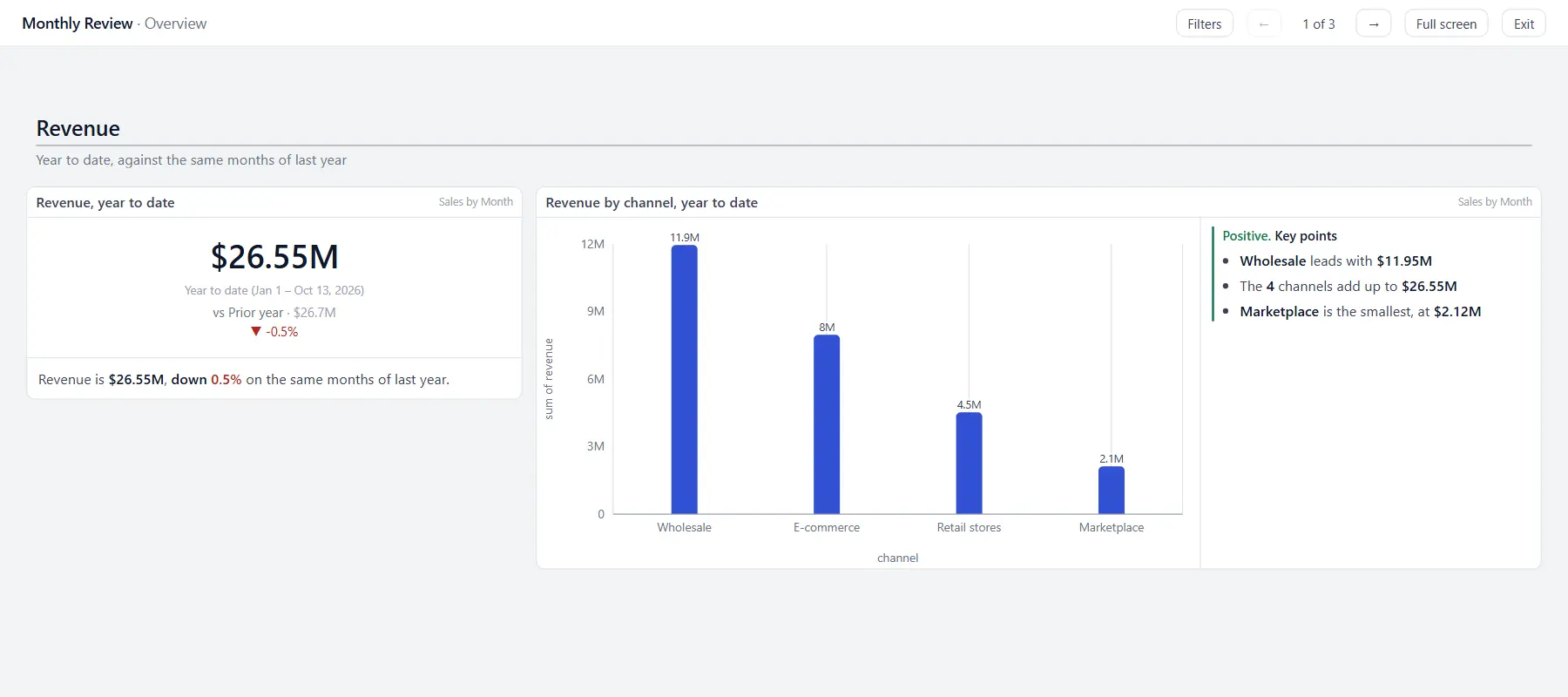
- Open the dashboard and click Present, the button with the Play triangle at the top. Point at it to read its name.
- Move between pages with the ← and → buttons, or the keys below.
- Choose Filters to show the dashboard's filters, and again to hide them.
- Choose Full screen to take the whole screen, where the browser allows it.
- Press Esc, or choose Exit, to leave.
| Key | What it does |
|---|---|
| Right arrow or Page Down | Next page |
| Left arrow or Page Up | Previous page |
| Home and End | First and last page |
| Esc | Leaves present mode |
- Present mode shows no sidebar, no top bar, no tabs and no editor. The bar at the top says which page you are on, such as 2 of 3.
- Widget titles, section titles and commentary are a size larger.
- The pages do not advance on their own.
- A dashboard without pages presents as one page.
- In full screen, the first Esc leaves full screen and the second leaves present mode.
- The address says
present=1while you present. A link with it opens in present mode, andp=chooses the page.
Printing, PDFs and emails
- Print this page and Download as PDF ask which pages when the dashboard has pages: All pages or This page.
- With All pages, each page starts a new sheet under its name.
- A section title with Start a new printed page starts a new sheet too.
- A scheduled email sends every page, in order. In the body, each page's name and each section title is a heading. A PDF starts a new sheet for each page.
- A scheduled email cannot send some pages only.
If something looks wrong
| What you see | What to check |
|---|---|
| No tabs | The dashboard has no pages. Choose Edit dashboard, then Add a page. |
| A link opens the first page | The page named in the address is not in the dashboard any more. |
| No Full screen button | The browser does not allow full screen there, for example in a frame that does not grant it. Present mode still takes the whole window or frame. |
| An arrow key does not turn the page | The cursor is in a filter. Click outside the filter first. |
| A printed section title sits alone at the foot of a sheet | Tick Start a new printed page on it. |
| An account on an older version | A version before 1.16.16 shows the pages one under another on one page, in order, with no tabs, and leaves section titles out. Saving the dashboard there removes its pages and section titles. |
Related: Building a dashboard · Commentary on a widget · Ranked tables and a chart's total · Dashboard filters · Showing a dashboard in another app · Scheduled emails